mcpro24fps demo - video camera
- 4.2
- Rating
- 1.00M
- Installs
- Free
- Price
 Analysis by App-foxy
mcpro24fps demo is an unusual app to judge because it sits between a camera tool and a hands-on preview. I approached it as a mobile video camera rather than as a complete replacement for the camera already built into a phone. Its purpose is to let you try the manual-camera experience associated with mcpro24fps before deciding whether the full version suits the way you record.
That distinction matters. This is not simply another one-tap camera with a few filters. The appeal is the promise of more deliberate control over video capture, while the demo format makes it easier to explore that style without paying first. I found the app most interesting when I treated it as a learning and testing tool: a place to see whether manual filming feels useful on my phone, not just whether the preview looks familiar.
What the demo is really for
The app belongs to the Libraries & Demo section, and that label gives the clearest expectation. It is free to try, carries an Everyone age rating, and comes from Chantal Pro SIA. The current version is 043cy-demo, with Android 7.0 or later required. Those details make it approachable for people using older Android hardware, although the actual comfort of filming will still depend heavily on the phone itself.
You May Also Like

 Blood Strike: 2.5 Anniversary
Blood Strike’s Loadouts Turn Every Drop Into a Tactical Gamble
A close look at Blood Strike’s custom loadouts: how fast access to signature weapons reshapes its battle royale rhythm, rewards preparation, and narrows the gap between fights.

 Pandora - Music & Podcasts
Pandora’s Music Is Easy to Start, but Harder to Recover
Pandora’s strength is its low-effort path from a seed to a station. Its weak spot is how much confidence it asks you to place in connection, setup, and quiet recovery.

 8 Ball Pool
 Is Built on Rivalries, Rematches, and Routine
A close look at the rivalries, rematches, shared routines, and unanswered safety questions that turn a quick pool match into a persistent mobile community.

 Samsung Music
’s Quiet Strength Is Playing What You Already Own
Its reach comes less from spectacle than from dependable access to a personal library. That simplicity is both the app’s strongest retention engine and its ceiling.

 AccuWeather: Weather Radar
AccuWeather Review: A Quick, Clear Forecast for Everyday Decisions
For everyday plans, the best forecast is the one you can understand quickly. AccuWeather makes rain timing, radar, and local conditions easy to act on, with a few trade-offs.

 Hill Climb Racing
Why Hill Climb Racing Still Turns Crashes Into One More Run
A tiny car, a bumpy hill and one more upgrade: Hill Climb Racing keeps resurfacing because its simple chaos makes every near-miss feel personal.
More From Our News Desk
View All News


Its store summary describes it as a demo of the manual video camera, with the option to try before buying the full version. I would therefore recommend starting with a specific question: do I want more control than my normal camera gives me? If the answer is no, this app may feel like extra complexity. If the answer is yes, the demo provides a low-risk way to investigate that workflow.
The app has reached over a million installs and holds a 4.2 average from around two thousand ratings. I see that as a sign of meaningful interest rather than proof that every phone will deliver the same experience. Manual video tools are especially sensitive to hardware, Android behavior, storage speed, and the design of the device manufacturer’s camera system.
One important practical point is that the demo should not be judged solely by whether it replaces the default camera immediately. The better test is whether its controls help me make a decision while recording. I would use it for a short clip indoors, another outside, and a moving subject. Those three situations reveal more than a quick glance at the interface.
Why network moments can change the first impression
Connectivity shapes the experience mainly around discovery and decision-making. A person may install the demo, inspect its behavior, and then need to move between the app and the relevant store or purchase flow when considering the full version. That makes a stable connection useful during setup and evaluation, even though I would not assume that every recording action requires network access.
I am deliberately cautious here because a camera app should not be described as offline or online without a confirmed statement about its individual functions. For a fair test, I would first open it with a connection available, explore the controls, and then see which parts remain usable in the conditions I actually care about. That is more reliable than treating the presence of a demo label as evidence of a particular connectivity policy.
Network interruptions can also affect expectations. If I am standing outside with a weak signal and trying to decide whether the full product is worth choosing, I would avoid making that decision from one interrupted session. A failed store handoff or delayed page can look like an app problem when the real issue is connectivity. I would separate the capture test from the purchase decision and revisit the latter when the connection is dependable.
This is one of the app’s less obvious trade-offs: the demo reduces the financial risk of experimenting, but it may encourage a user to evaluate too quickly. Manual video tools take time to understand. I would rather record several deliberately different clips than judge the app after a single launch, especially if the first session is spent looking for familiar automatic-camera behavior.
Using it in ordinary mobile situations
The most realistic use case for me is a quick filming session away from a desk. Imagine recording a child’s school performance, a small product demonstration, or a travel clip while carrying only a phone. The attraction of a manual camera is that I can make decisions before pressing record instead of hoping the automatic mode interprets the scene correctly.
In that situation, the demo is valuable as a rehearsal tool. I would open it before the important event, test the framing, check how quickly I can reach the controls, and record a few seconds while moving the phone. The goal is not to learn during the performance. It is to discover beforehand whether the interface is fast enough for me to use without staring at the screen.
A second useful scenario is comparing the app with the phone’s built-in camera under identical conditions. I would place the phone in the same position, record the same subject, and keep the clips short. Then I could ask practical questions: which camera lets me start faster, which gives me the control I actually need, and which produces a result I can use without extra correction?
This comparison is more revealing than a feature checklist. The default camera usually wins for speed and simplicity because it is already integrated into the phone. The mcpro24fps demo is more compelling when I have a reason to take responsibility for the capture settings and want to learn a repeatable manual workflow.
There is also a useful preparation trick for mobile filming: decide what must remain automatic and what you genuinely want to control. Beginners often try to adjust everything at once, which slows down recording and creates inconsistent clips. I would begin with one priority, such as keeping exposure steady, then add another only after the first feels natural. The demo works better as a gradual learning environment than as a place to chase every possible adjustment immediately.
Where a failed session becomes a useful test
A camera demo should be tested not only when everything goes well. I would deliberately stop a short trial, leave the app, return to it, and repeat the opening steps later. I would also test it after switching between a strong and weak connection, while remembering that a connection change can affect surrounding store or account activity rather than the act of filming itself.
The reason is simple: real mobile recording is interrupted. A call, a notification, a low battery warning, or an accidental screen touch can break concentration. The app’s value depends partly on how quickly I can recover my place and resume a sensible workflow. Even without inventing a particular recovery feature, this is an important review habit: I should judge the time and attention required to get back to recording, not just the ideal first run.
My advice is to create a small recovery routine. Before an important shoot, open the app, confirm the intended framing, record a short sample, stop, and inspect the result. If a connection-dependent screen appears during setup or a purchase-related step, handle that before the event rather than during it. This separates technical preparation from the moment when the footage matters.
The demo format also changes how I interpret limitations. If the trial does not behave exactly like the full product, that is not automatically a flaw in the idea of manual video. It does mean I should avoid assuming that a short preview represents every part of the paid experience. I would use the demo to judge the handling, the learning curve, and whether the approach fits my habits, then make the full-version decision separately.
Another recovery concern is user error. Manual controls can make a mistake more likely because there are more decisions available. My practical safeguard would be to keep early tests short and review them immediately. A ten-second sample can reveal an unusable setup before I spend several minutes recording something that cannot be repeated.
Being sensible with data and device resources
Video naturally creates larger files than ordinary photographs, so a careful test should be short and purposeful. I would not begin by recording a long event simply to explore the interface. A few clips in different lighting and movement conditions are enough to learn whether the app deserves a place in my routine.
This approach is useful for data-conscious users because it avoids wasting mobile transfer on footage that was only captured for experimentation. If I am connected through a limited mobile plan, I would do the discovery and store-related steps when a suitable connection is available, then keep the actual evaluation focused on clips I intend to inspect. I would also review and remove failed samples promptly rather than letting test recordings accumulate.
There is a subtle distinction between network data and local video storage. A connection may matter for downloading, account activity, or moving through purchase information, while the recording itself is a separate question that should be tested rather than assumed. I would keep those two concerns apart when planning a shoot. That prevents a user from blaming the camera workflow for a connectivity problem, or expecting a network-dependent step to work in a dead-signal location.
Older phones deserve extra patience. Android 7.0 compatibility makes the app available to a broad range of devices, but compatibility is not the same as identical performance. A newer phone may feel more comfortable when previewing or handling video, while an older model may make manual operation feel slower or less forgiving. I would test on the exact phone I plan to use, not on another device owned by a friend.
One of my favorite practical tests is a “walk and talk” sample. I would record a short clip while moving at a normal pace, then repeat it with the phone held more carefully. This reveals whether the manual approach helps me or merely adds decisions while I am already trying to keep the frame steady. A camera that looks impressive when the phone is on a table may not be the right tool for handheld recording.
Who will appreciate it, and who should skip it
I think the demo is best for Android users who are curious about manual video and want to understand the workflow before committing to the full mcpro24fps experience. It is also useful for students, hobby filmmakers, mobile journalists, and creators who have outgrown automatic capture but are not sure whether a dedicated manual camera is worth learning.
It is less suitable for someone who wants a completely effortless camera. If the priority is opening the phone, pressing one button, and trusting the automatic result, the built-in camera may be the better choice. The same is true for users who mainly need quick social clips and do not want to spend time checking settings before recording.
I would also hesitate to recommend it as the only camera for an important one-time event before practicing. A demo can lower the barrier to exploration, but it cannot remove the need to learn the controls. The right preparation is to use it repeatedly in low-pressure situations, compare its clips with the default camera, and decide whether the additional control produces a result I can repeat.
Compared with general camera apps in the same broad category, its strongest difference is the focused manual-video identity. Compared with the phone’s standard camera, its likely advantage is intentional control rather than convenience. That is a genuine trade-off, not a universal upgrade. For me, the better option depends on whether the shot benefits from deliberate setup or whether speed matters more than fine adjustment.
The developer is Chantal Pro SIA, and the free demo structure makes the initial decision easier: I can explore the concept without treating the first impression as a permanent purchase. Still, I would read the demo as an invitation to evaluate a workflow, not as a guarantee that every phone, scene, or recording habit will suit it.
My connectivity verdict after testing the idea
Connectivity is not the main reason to choose this app, but it affects how smoothly I discover, evaluate, and move toward the full version. I would begin with a reliable connection for installation and any store-related steps, then test the camera in the real places where I expect to use it. That simple separation gives a much clearer picture than judging everything from one session.
The strongest advice I can give is to treat the demo as a controlled experiment. Test a static subject, a moving subject, and a short spoken clip. Repeat at least one test after leaving and reopening the app. Keep the samples brief, review them immediately, and compare them with the default camera on the same phone. These steps expose both the practical benefit and the friction of manual filming.
After that process, the decision is fairly clear. Choose it if you want to explore a more deliberate video workflow and are willing to practice. Stay with the built-in camera if convenience, instant access, and minimal setup matter most. I would recommend trying mcpro24fps demo to anyone who wants to answer that question through real use rather than guesswork.
Its free status, Everyone rating, broad Android compatibility, and large install base make the experiment approachable. The honest limitation is that a demo still asks me to do the evaluation work: test my own phone, my own connection conditions, and my own filming habits. For a manual camera, that is exactly the right standard. The app does not need to replace every camera to be useful; it only needs to show whether taking more control makes my videos better and my process more dependable.
My final view is positive but specific: this is a worthwhile trial for learning whether manual mobile video fits your hands, your phone, and your everyday shooting situations. I would not install it expecting a universal point-and-shoot replacement. I would install it with a short test plan, a realistic understanding of network-dependent moments, and a willingness to return to the simpler camera when the scene demands speed.
FAQs for mcpro24fps demo - video camera
01What features are available in the demo version of mcpro24fps?
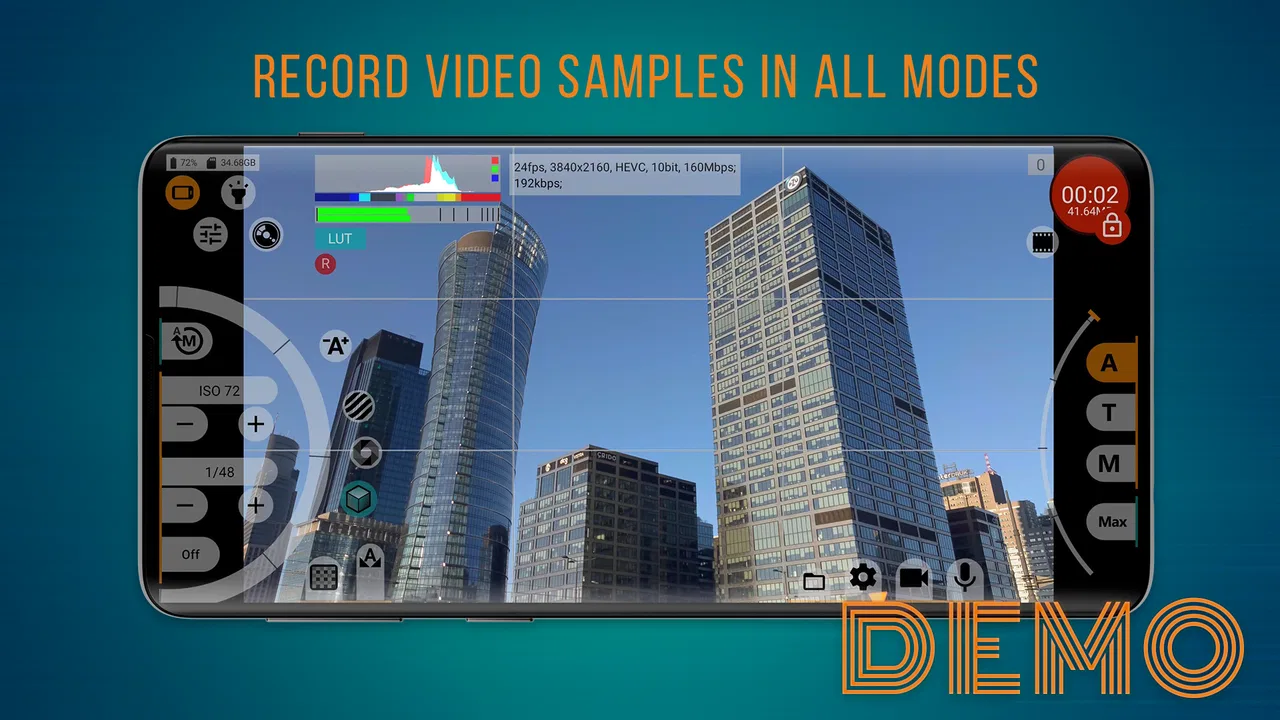
The demo version of mcpro24fps offers a variety of features that allow users to explore the app's capabilities. You can record videos at different frame rates and resolutions, test various filters, and experiment with manual controls like focus, ISO, and white balance. However, some advanced features might be restricted to the full version.
02Can I export videos in the demo version of mcpro24fps?
In the demo version, there are limitations on exporting videos. While you can record and review your footage within the app, exporting might include watermarks or restricted resolutions. To unlock full export capabilities without restrictions, upgrading to the full version is recommended.
03Is it possible to use external microphones with mcpro24fps demo?
Yes, mcpro24fps demo supports the use of external microphones, allowing users to enhance their audio recording quality. You can connect compatible microphones via the headphone jack or through Bluetooth, ensuring better sound capture compared to the built-in microphone.
04How user-friendly is the interface of mcpro24fps demo?
The mcpro24fps demo boasts an intuitive and user-friendly interface designed for both beginners and experienced videographers. The layout is clean, with easy access to controls and settings. While it offers advanced settings, the app provides helpful guides and tips to assist users in navigating through its features.
05Can I use mcpro24fps demo for professional video projects?
While the mcpro24fps demo offers powerful tools suitable for testing and learning, it might not be ideal for professional projects due to certain limitations, such as watermarks on exports and restricted access to premium features. For professional use, purchasing the full version is advisable to access the complete suite of tools.
Pros
- Offers manual control over video settings.
- Supports 4K video recording.
- User-friendly interface for easy navigation.
- Real-time histogram for exposure control.
- Compatible with external microphones.
Cons
- Limited features in demo version.
- Occasional app crashes reported.
- High battery consumption during use.
- Not optimized for older devices.
- Requires in-app purchases for full access.

mcpro24fps demo - video camera
Gallery